
Making Promo Videos with DaVinci Resolve
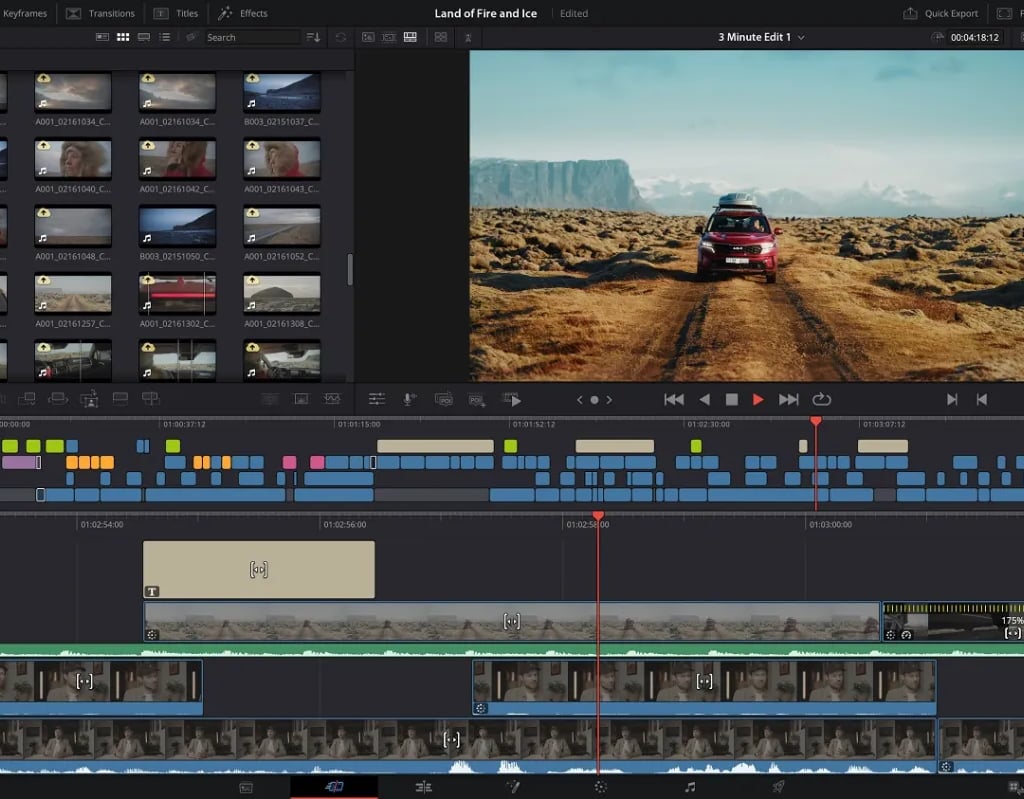
Here’s a step-by-step tutorial to export your AI generated music track as a WAVE file, then use DaVinci Resolve to create a promo video.
This is 'the long way' to create a video, but allows total control on the creation and final output quality of the video. For the quick-and-dirty method, see the MOSH-PRO tutorial.
What You’ll Need
- A Suno account (suno.ai) with a generated song
- DaVinci Resolve (free version works perfectly)
- JPG file (any image you want as the video visual) use Grok
- A computer with internet access
Step 1: Download Your Track from Suno
Log into Suno and go to Your Library → Songs.
2. Find the track you want to use.
3. Click the three dots (...) or the down arrow icon next to the song.
4. Select Download Audio.
- Suno typically downloads as an MP3 file.
Pro tip: Rename the file clearly, e.g., `MySunoSong.mp3`.
Step 2: Open DaVinci Resolve & Create a New Project
1. Launch DaVinci Resolve.
2. Click New Project.
3. Name it (e.g., `Suno YouTube Video`).
4. Click Create.
IMPORTANT: Select 'File' - 'Project Settings'
'Timeline resolution' = Custom
For: 1082 x 1080 processing
(this overrides YouTube making your video as Shorts)
then click Save
Step 3: Import Your MP3 and JPG into the Media Pool
1. Go to the Media tab (bottom of the screen).
2. In the Media Pool (top-left), right-click → Import → Import Media.
3. Select your MP3 file and your JPG image.
4. Click Open.
You should see both files in the Media Pool.
Step 4: Create a Timeline with the JPG Image
1. Switch to the Edit tab (bottom).
2. Drag your JPG file from the Media Pool onto the timeline (the gray area on the right).
- A new video track (V1) will appear.
3. Drag your MP3 file onto the audio track (A1), directly below the JPG.
Step 5: Extend the JPG to Match the Music Length
By default, the image might be only a few seconds long. You need it to last the entire song.
1. Hover your mouse over the right edge of the JPG clip on the timeline until you see a red bracket icon `[ ]`.
2. Click and drag to the right until it matches the length of the MP3 clip.
- You can zoom in/out with `Ctrl + Mouse Wheel` (Cmd on Mac) for precision.
3. If the JPG clip is shorter than the MP3, just drag until they align perfectly.
The image will stay static – that’s fine for a simple YouTube visual.
Step 6: (Optional) Add a Fade Out
1. Click on the MP3 clip on the audio track.
2. Go to the Inspector (top-right corner, click the icon if hidden).
3. Under Audio → Fade → Fade Out, drag the slider or type `2` seconds.
4. Do the same for the JPG video clip if you want the visual to fade too – under Video → Composite → Fade Out.
Step 7: Export as MP4 for YouTube
1. Go to the Deliver tab (bottom).
2. In the Render Settings (left panel):
- Format: MP4
- Codec: H.264
- Resolution: Choose 1080x1080 HD (square)
- Quality: Select Best or High
3. In Audio settings:
- Codec: AAC
- Bitrate: 320 kbps (good for music)
4. Set File Name and Location where you want to save the video.
5. Click Add to Render Queue (bottom).
6. Click Render All (sidebar on the right).
Step 8: Upload to YouTube
1. Go to [YouTube Studio](https://studio.youtube.com).
2. Click Create → Upload Videos.
3. Select your new MP4 file.
4. Fill in title, description and thumbnail.
5. Publish or save as unlisted/draft.
Troubleshooting
Image won’t extend long enough
... Right-click the JPG clip → Change Clip Duration → set to match song length
No sound in exported video
... Check that audio track (A1) is enabled and not muted (click the speaker icon on track header)
Final Notes
- This method works for any audio file, not just Suno.
- For better YouTube engagement, consider adding subtle motion to the JPG (Ken Burns effect) or using multiple images – but static JPG is perfectly fine for podcasts, ambient music, or lyric-free tracks.
Now you have a YouTube-ready MP4 video with your Suno music and a custom visual. Upload and share your AI-generated track!
© 2026. All rights reserved